|
How to STOP Your TV From Collecting Data on You
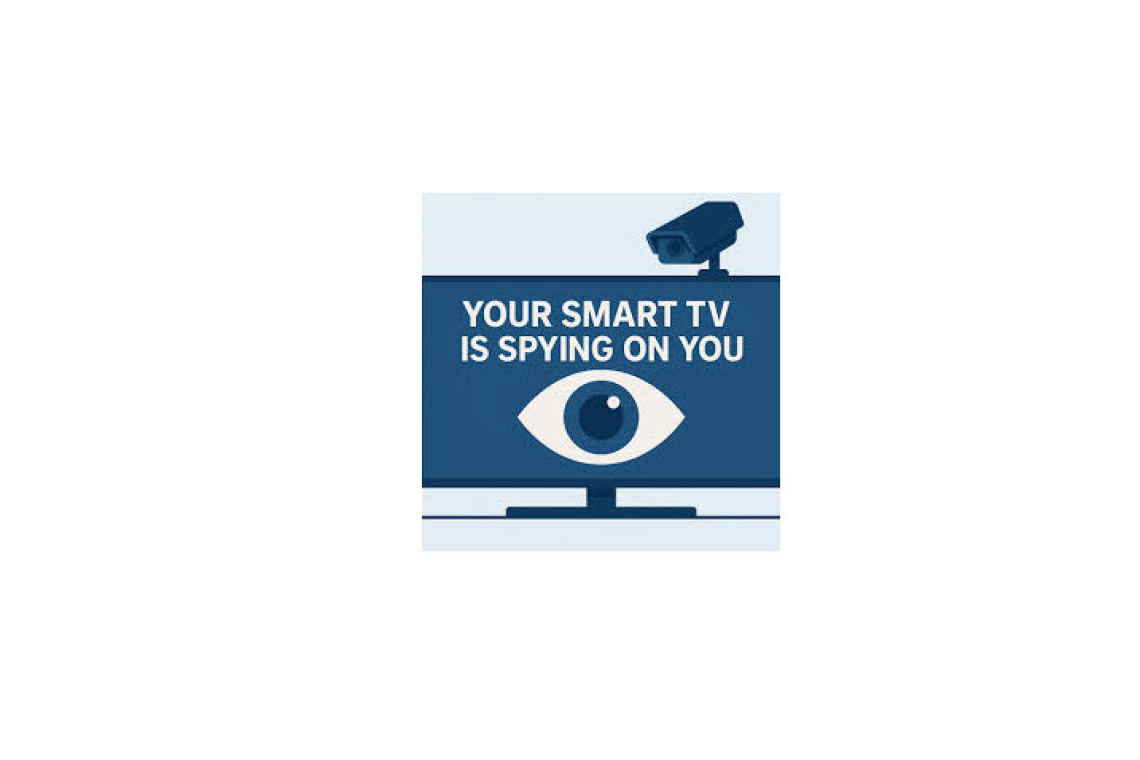
Here’s what your TV might be collecting and how to stop it: 1. What’s happening Smart TVs use a system that quietly scans what’s on your screen. It captures tiny bits of visuals at intervals, converts them into data, and matches it to identify what you’re watching—apps, channels, games, even devices connected via HDMI. That information is then used for ad targeting.
2. Why it matters Some TV makers have been accused of linking viewing habits with outside data to build detailed user profiles and monetize them through ads. Regulators have taken action in the past over these practices. For many brands, advertising and data now bring in massive revenue, sometimes rivaling or even surpassing hardware sales. In simple terms, the value isn’t just the TV you buy, it’s the data it generates. With smart TVs in the majority of homes, this impacts a huge number of people.
Here’s how you can turn it off: 3. LG Go to: Settings > General > System > Additional Settings Turn off “Live Plus” Then: Settings > Support > Privacy & Terms > User Agreements Turn off “Viewing Information” Tip: Some updates may switch these back on, so it’s worth checking again from time to time.
4. Samsung Go to: Settings > All Settings > General & Privacy > Terms & Privacy Turn off “Viewing Information Services” The name sounds neutral, but it’s the feature tied to tracking what you watch.
5. Sony Go to: Settings > All Settings > Samba Interactive TV Turn it OFF Sony uses a third party service called Samba TV for this feature. Disabling it limits tracking, though companies don’t always clearly explain the full extent of what’s still collected.
6. Amazon Fire TV Go to: Settings > Preferences > Privacy Settings Turn OFF: • Device Usage Data • App & Broadcast Usage Collection • Interest-Based Ads Note: Updates can switch these back on, so it’s a good idea to recheck after each update.
7. Vizio Go to: Menu > Settings > All Settings > Admin & Privacy > Viewing Data Turn it OFF This feature was previously labeled differently, but it serves the same tracking purpose. Regulators have taken action against Vizio in the past over how viewing data was handled, highlighting why it’s worth disabling.
8. Roku TVs (Applies to brands using Roku software) Go to: Settings > Privacy > Smart TV Experience Turn OFF “Use info from TV inputs” Then: Settings > Privacy > Advertising Turn OFF “Personalize ads” This helps limit tracking across apps, channels, and connected devices
9. Panasonic (Smart TVs) Go to: Settings > Network / Internet Settings > Privacy Policy Turn OFF any data collection / viewing info / ad tracking options (names vary by model)
10. Philips (Android / Google TV) Go to: Settings > Device Preferences > Usage & Diagnostics Turn OFF Usage Data Sharing Then: Settings > Privacy > Ads Turn ON “Opt out of Ads Personalization” One last thing: No matter the brand, updates can quietly turn these settings back on. Best practice: switch off tracking features in settings and, if you want maximum privacy, keep your TV offline when not needed. Some devices can store activity and sync it later once reconnected.
Sources: http://arxiv.org/abs/2409.06203 http://texasattorneygeneral.gov http://ftc.gov
MAGA Watch Current Q update. ... Original 'Q' Code . ... . Q Report . ... . Q Note .... Q. Truth ... The real Israel is America. . ...Q Plot.... . Q.Coup ....Q.Coup.QFS .... Q. Con op.
|
|
|
|
Copyright 2015� Disclaimer www.Soul-Search.org |